Category: Command line tools

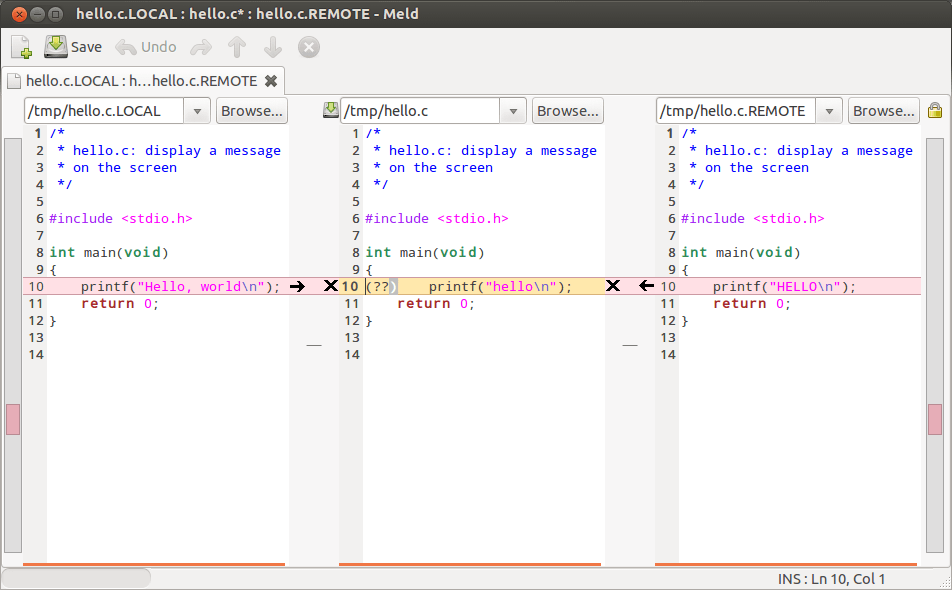
  • Visualizing Git diffs in Meld.

    Here’s a quick way of configuring your (Linux-based) Git installation to use the excellent Meld program by default for displaying/editing the outputs of the git diff and git merge commands (e.g. git diff «filename»).
    Install Meld

    …if you haven’t already (note that we assume Git to be present):

    # on Debian-based distros (ymmv)
    sudo apt-get install meld
    

    Viewing/editing file diffs via Meld

    Configure Git to use Meld as the default tool for git diff:

    git config --global diff.tool meld
    git config --global difftool.prompt false
    

    Now, rather than the classic git diff, simply use:

    git difftool
    

    Resolving merge conflicts via Meld

    Basically do the same for the git mergetool command:

    git config --global merge.tool meld
    git config --global mergetool.prompt false
    

    And then, instead of git merge, simply use:

    git mergetool
    

    …in the conflicting areas of your Git project.

    Full directory comparison

    Git supports full directory comparison via the following command:

    git diff --no-index «folder-inside-git-project» «folder-to-compare-against»
    

    While both useful and powerful, this command can be quite difficult to use, especially is you have a large tree structure. However, it just so happens that this is another aspect where Meld shines. Just run:

    meld «folder A» «folder B»
    

    And you will be able to visualize and edit the entire set off differences of both folder structures (including files).

    Enjoy!

    Notes:

    • The *tool.prompt false bits are needed to prevent the prompting of the user on each command invocation (which is the default behaviour).
    • The full directory comparison mode supported by Meld is obviously available for any folders, not just those inside Git projects.
    • I’m using Ubuntu 12.10, your setup may require different configuration options (although if you have a decently recent Git you should be fine).
  • Command-line option parser in JavaScript.

    Here’s a small but very effective command-line option parser written in JavaScript (uses NodeJs). You can get the up-to-date source code at http://gist.github.com/982499.

    I wrote this because I needed it for a project and I did not think it was worth it to install some npm package just for this. The comment should explain most things you will need but ask me if you don’t understand something. Note that this code is not well tested (yet!) since I just wrote it this morning so post a comment when you find a bug.

    Supports:

    • Short and long options (i.e. ‘-t|--test‘).
    • Option parameters (i.e. ‘-f /etc/resolv.conf‘).
    • Mandatory options.
    • Implicit help option.
    • Option callback functions.
    • Cumulated short options (i.e. ‘-ab‘).
    • Repeatable options (i.e. ‘--add value1 --add value2‘).
    • Non-option arguments.

    Notes (extracted from the comments):

    • Parser is case-sensitive.
    • The ‘-h|–help’ option is provided implicitly.
    • Successfully parsed options will be available as fields in the “options” object.
    • Non-option arguments found will be available in order in the “arguments” array.
    • Options and their parameters must be separated by space.
    • Either one of «short» or «long» must always be provided.
    • The «callback» function is optional and is invoked each time the option is encountered.
    • Cumulated short options are supported (i.e. ‘-tv‘).
    • If an error occurs, the process is halted and the help message is shown.
    • Options with the “multiple” attribute will be cumulated into arrays (even if found only once).
    • The parser does *not* test for duplicate definitions in the schema array.

    See the code for everything else you need to use it (i.e. a sample schema definition). I will not waste any more time talking about it; if you like it, paste it at the top of your NodeJS script and start playing with it, e.g.:

    $ node options.js -tf /some/file.txt foo bar

    Also, please tell me about any improvements or fixes you produce. Thanks and… enjoy! 🙂

  • Lua2C, an updated version

    I know I have been “missing in action” lately but I am working furiously, and I seem to have too little time for my blog (very sad face). But, just for a breath of fresh air, I thought I’d share something with the world.

    Entering lua2c.lua

    Lately I became quite interested in Lua (a lot actually). It has phenomenal speed, exceptional interfacing with C and some features and libraries that just make my day (i.e. coroutines, lpeg, lua-ev and others), and since I needed to embed some Lua scripts (entirely) in a C project I’m currently working on, I ended up adapting Mike Edgar’s “bin2c.lua” script (which takes a Lua script and turns it into a C header file) to suit my needs.

    Basic functionality

    Specifically, this adaptation generates a function that takes a Lua state as the only argument and then runs the embedded Lua code in the given state after which it returns the status (as opposed to putting the code straight in the top-level scope of the generated file). This makes it easier to embed code in C and then invoke it, and also to apply the same code onto multiple Lua states (e.g. multiple threads).

    Check further down for a short usage sample. (more…)

  • URI parsing using Bash built-in features

    A bit of background

    A while ago I posted an article describing how one could parse complete URIs in Bash using the sed program. Since then, I have realized that there is a better way to do it, a much better way: via Bash built-in pattern matching
    Here are some benefits of this improvement:

    • It no longer executes external programs (i.e. sed) for pattern matching. This translates to higher speed and lower memory and CPU usages, which means that you could use this parser for much more intense URI crunching.
    • The new regular expressions are drastically simplified thanks to the ${BASH_REMATCH[*]} array that is able to hold more than 9 matched sub-expressions, unlike sed that can only work with single-digit escapes: \1-\9 (yuck!).
    • The parsing algorithm is contained in a single Bash function, so no external file is needed to hold the regular expressions. This also means, obviously, that the pattern file is no longer loaded from disk on every execution (so HDD is saved as well).
    • The generated variables are named identically to the first version, so you should be able to upgrade your scripts to this version with absolutely minimal effort.
    • [Edit]
      No eval instruction is needed (unlike in the first version), further improving performance.

    (more…)

  • Recursive chmod distinguishing files from folders

    Version 3

    An even better method is:

    find "$target" -type f -exec chmod -c "$mode_files" {} \; \
         -or -type d -exec chmod -c "$mode_dir" {} \;

    A true one-liner! 😀

    Version 2

    A better method is this:

    find "$target" -type f -exec chmod -c "$mode_files" {} \;
    find "$target" -type d -exec chmod -c "$mode_dir" {} \;

    This one can also be used from the command line.

    Version 1

    Many times I needed to apply certain permissions recursively on a given path but with different permissions on files than on directories (i.e. I want 0644 for files and 0744 for directories). This behaviour is not provided by the chmod tool so here is a simple and effective bash function to do just that:

    # Recursively apply chmod to path.
    # If mode_files is missing then apply mode_dir to files too.
    # Params: target mode_dir [mode_files]
    function deep_chmod() {
        function _walk() {
            local F
            for F in `find "$1"`; do
                local M="$3"; [[ `file -b "$F"` == "directory" ]] && M="$2"
                chmod -c "$M" "$F" > /dev/null
            done
        }
        if [[ $# > 2 ]]; then
            _walk "$1" "$2" "$3"
        else
            chmod -Rc "$2" "$1"
        fi
    }

    I’m looking for a way to improve on this since it is quite costly for large directories: for each file or directory at least two programs are executed (file and chmod) which is not very efficient! For now, it gets the job done.

    Enjoy! 🙂

  • Bash URI parser using SED

    Warning! This version is now obsolete!
    Check out the new and improved version (using only Bash built-ins) here!

    Here is a command-line (bash) script that uses sed to split the segments of an URI into usable variables. It also validates the given URI since malformed strings produce the text “ERROR” which can be handled accordingly:

    # Assembling a sample URI (including an injection attack)
    uri_1='http://user:pass@www.example.com:19741/dir1/dir2/file.php'
    uri_2='?param=some_value&array[0]=123¶m2=\`cat /etc/passwd\`'
    uri_3='#bottom-left'
    uri="$uri_1$uri_2$uri_3"
    
    # Parse URI
    op=`echo "$uri" | sed -nrf "uri.sed"`
    
    # Handle invalid URI
    [[ $op == 'ERROR' ]] && { echo "Invalid URI!"; exit 1; }
    
    # Execute assignments
    eval "$op"
    
    # ...work with URI components...
    

    Notice the "uri.sed" file given to sed?
    (more…)

  • Recursive file/directory change-detection

    Disclaimer

    This article explores a way in which an approximate “fingerprint” of a file tree can be created! If all you want is to detect file changes a much more appropriate method would be to use inotify/incron.

    Version 2 (update)

    Another, much faster method would be to use ls -lR to browse over the filesystem. On a newly installed Debian virtual machine (on Xen) hashing the entire filesystem (the root directory) took approximately 1.7 seconds. So, here it is:

    ls -lR "$D" | sha1sum | sed 's/[ -]//g'

    This method is sensitive to file name, size and modification size; usually that would be enough but if you need more control use…

    Version 1

    Detect when the contents of a file or directory ($D) changes:

    find "$D" | while read f; do stat -t "$f"; done | sha1sum | sed 's/[ -]//g'

    This yields a hash of the current state of the file or directory which is extremely sensitive to even the most subtle changes (even a simple touch to any file/directory somewhere inside "$D" changes the generated hash).

    (more…)

  • Detect number of CPUs on a machine

    UPDATE: Steven pointed out (very nicely) that there’s no need for cat in this picture, grep would do just fine on its own. So, thanks Steven!

    Detect how many CPU cores are present on the running machine:

    grep -c processor /proc/cpuinfo
    

    This can be very useful when writing multi-threaded programs to properly match the number of threads with the number of CPU cores.

    (more…)